Search
Getting Started
Feature guides
External Data Sources
Dreambase Plugin & MCP
Community support
Set up the Dreambase remote MCP server to connect your Supabase data to Claude, Cursor, and other AI agents.
Installing the Dreambase MCP
The easiest way to get the Dreambase MCP server is the Dreambase Plugin, which installs the server and all nine Dreambase Skills in one step. If you only want the MCP server, or the plugin listing isn't available in your client yet, add it manually with the steps below.
ChatGPT Installation
Navigate to Plugins, click + to add.
Icon:

Name: Dreambase
Description: MCP tools to get datasets, aggregate metrics and kpis, create supabase health reports, and analytics
Server URL
Connection: https://app.dreambase.com/mcp
Authentication: OAuth
Check the box for terms
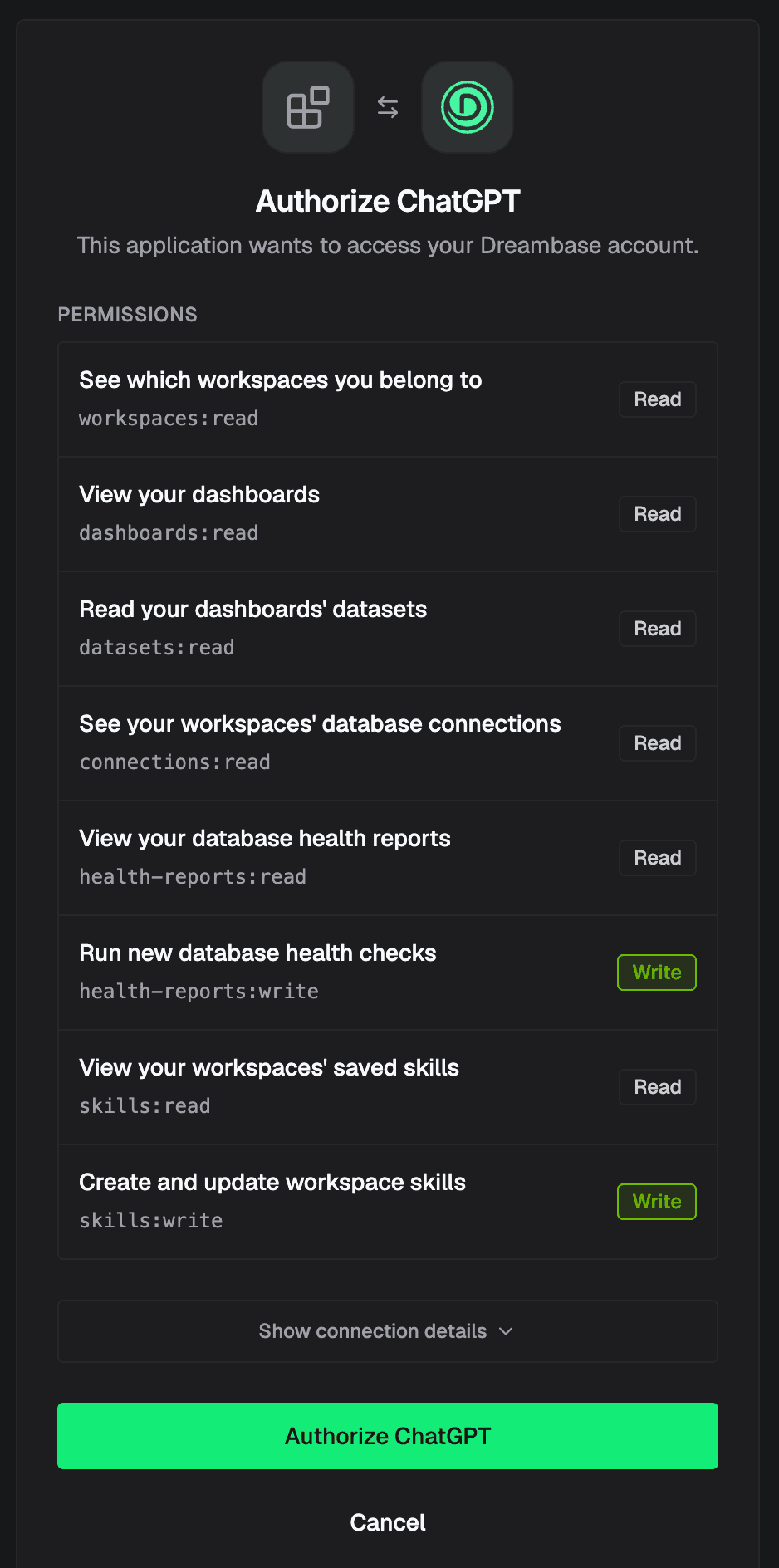
Click Create and Sign in with Dreambase

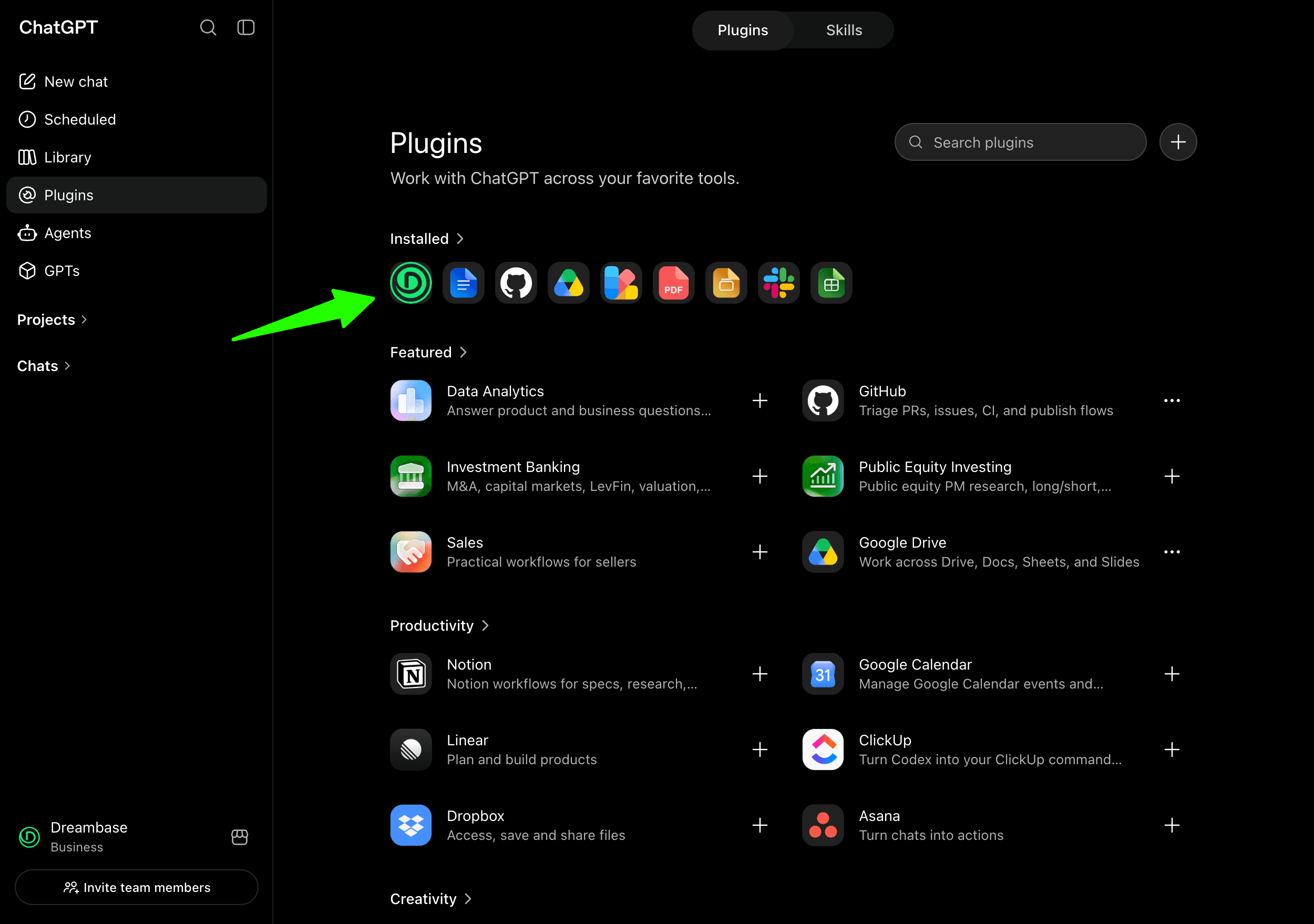
You will then see Dreambase in your Plugins
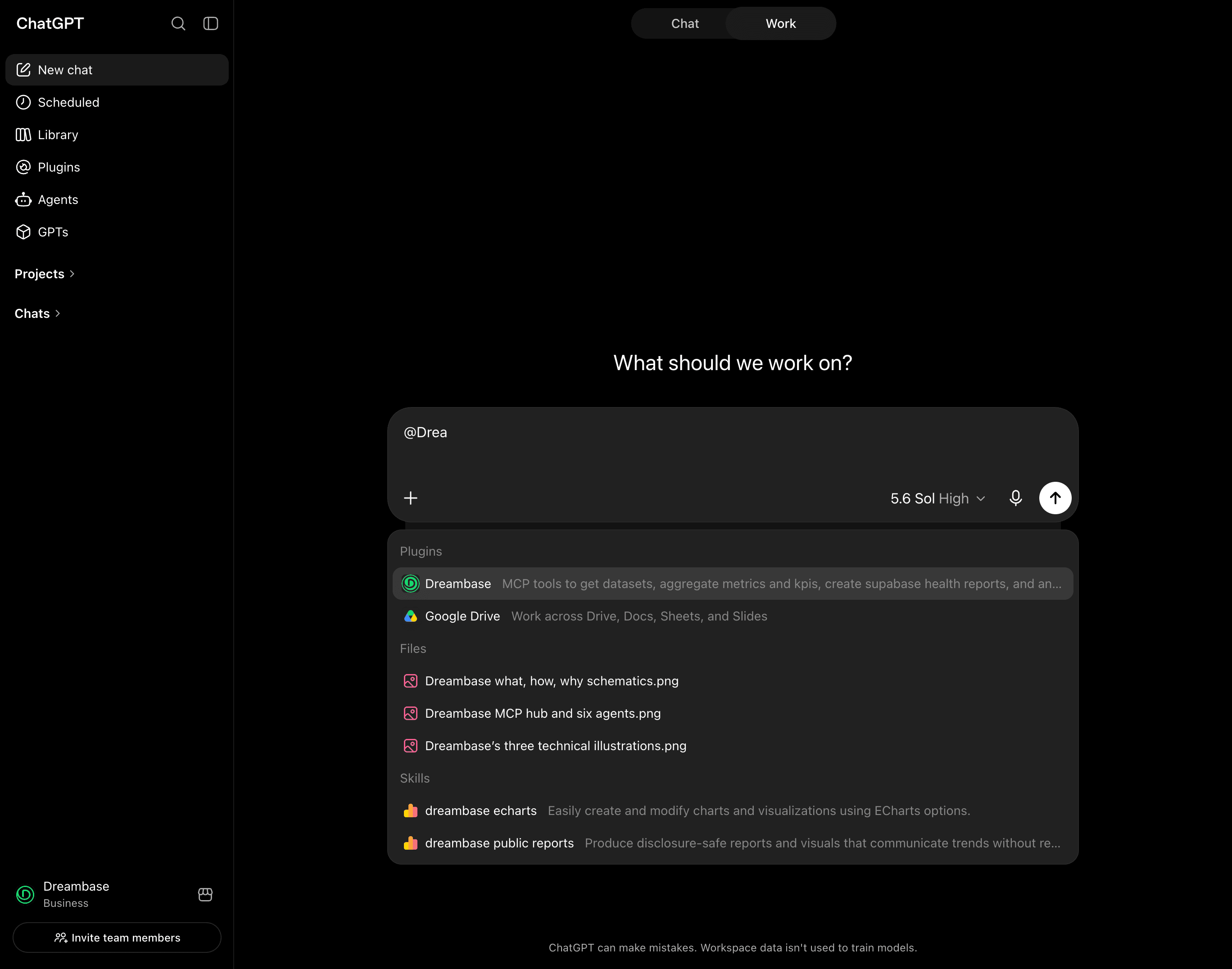
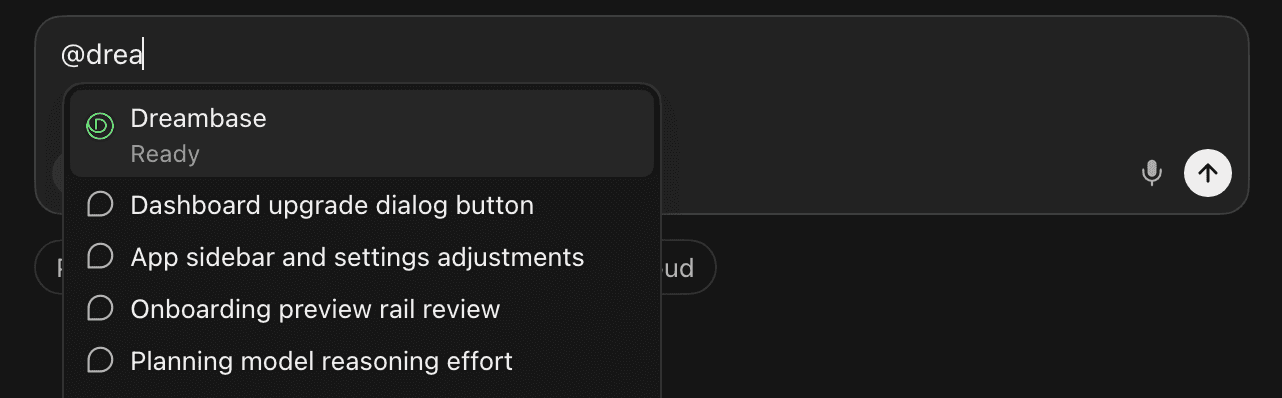
and you can now @ mention Dreambase to use the MCP tools
—
Claude Chat / Cowork / Code Installation
Navigate to Customize → Connectors → Add → Add custom connector
Name: Dreambase
Remote MCP server URL: https://app.dreambase.com/mcp
Leave Advanced settings blank
Individual sign-in: enabled
Add, then Connect
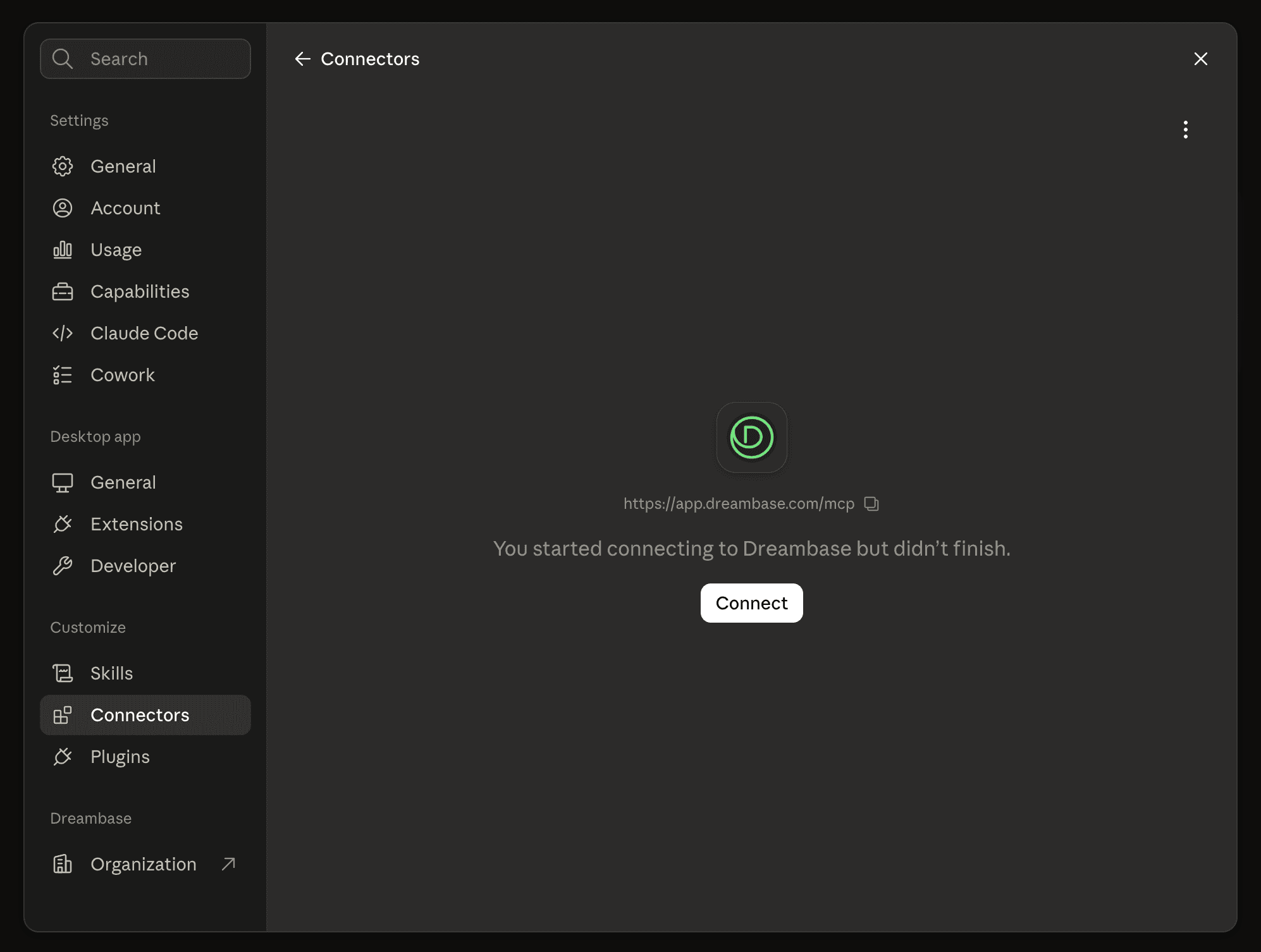
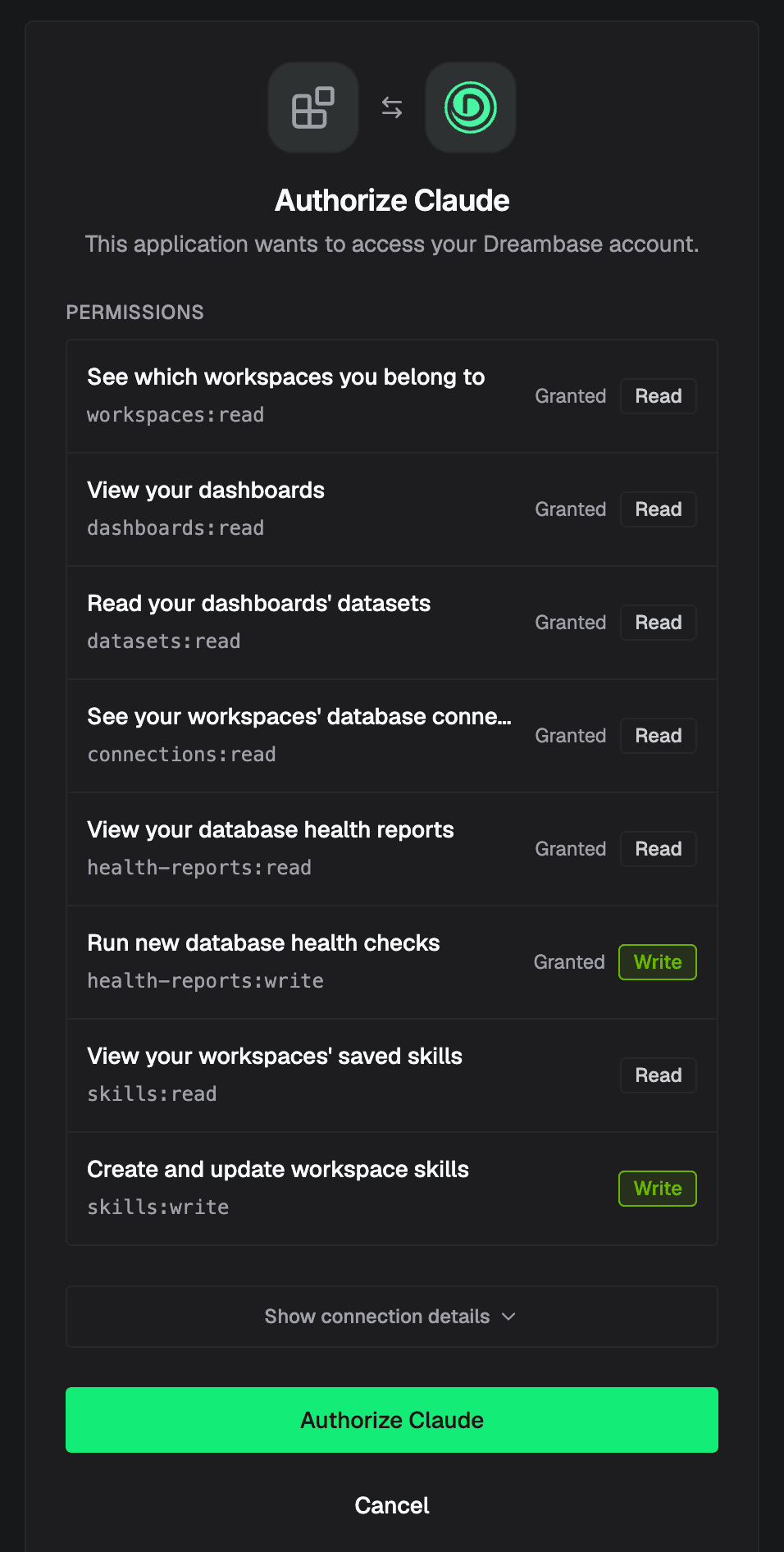
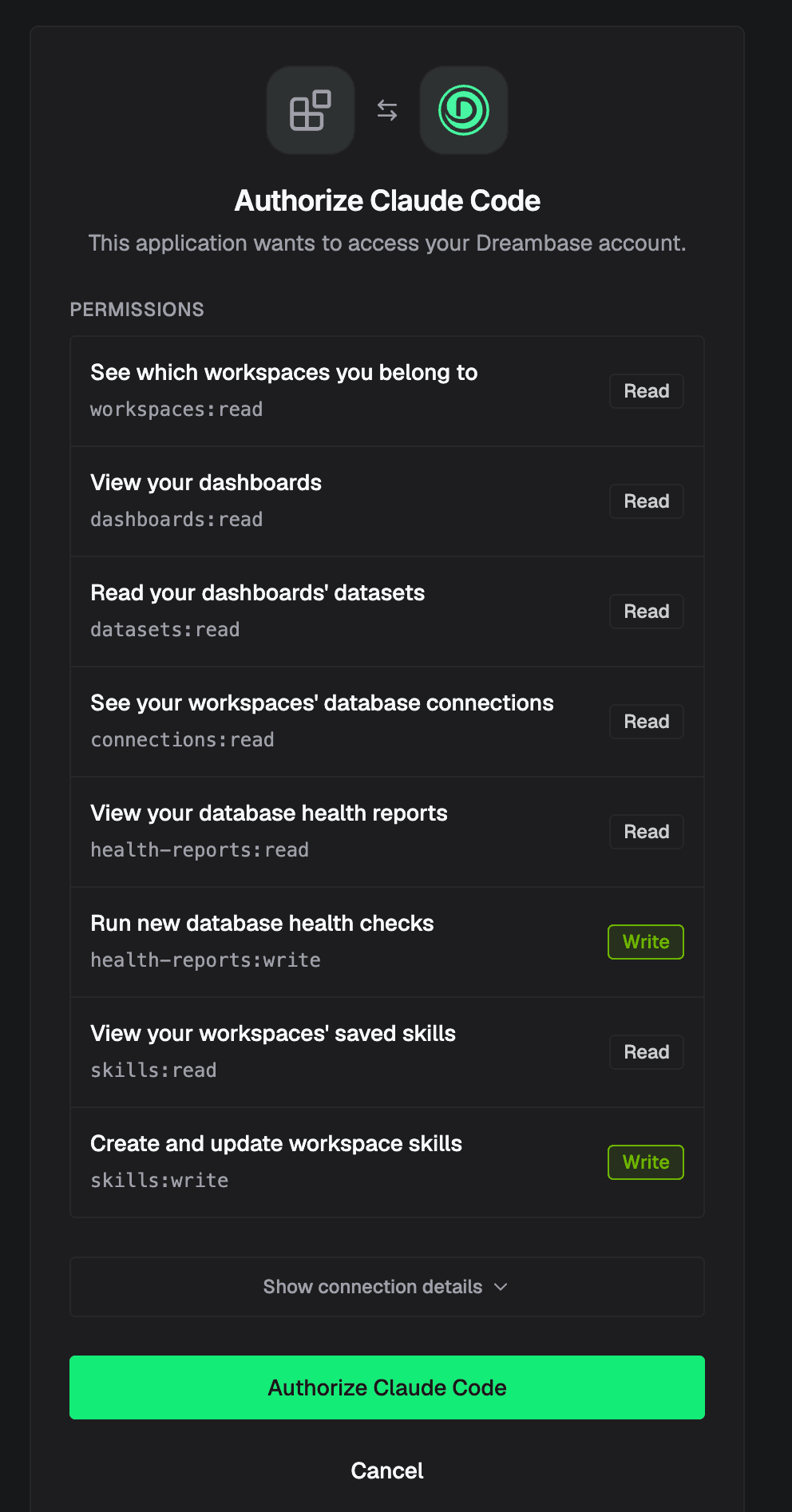
Click Authorize Claude
Tool permissions
We recommend always allow for Read-only tools that safely fetch information as designed
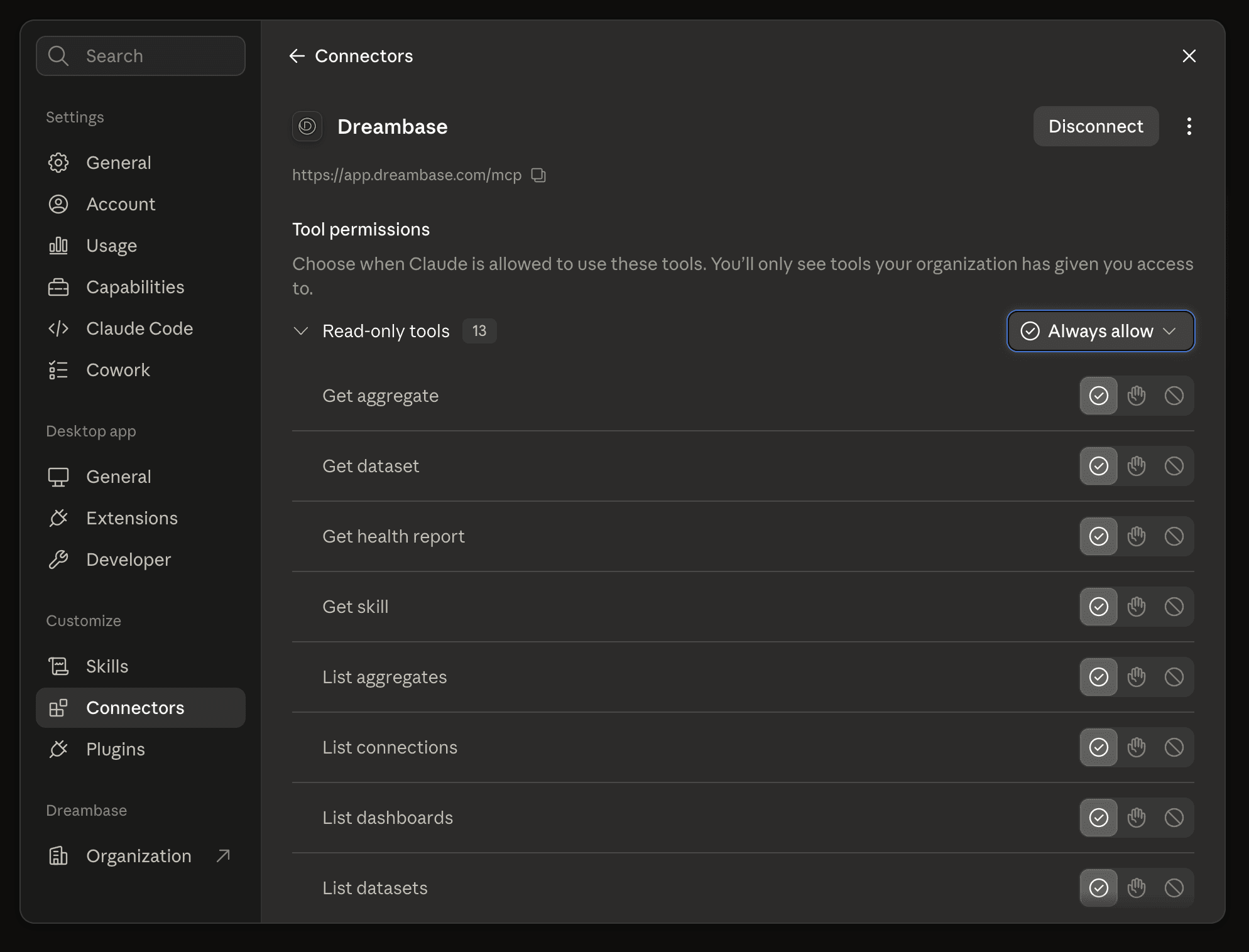
For write tools we recommend Needs approval

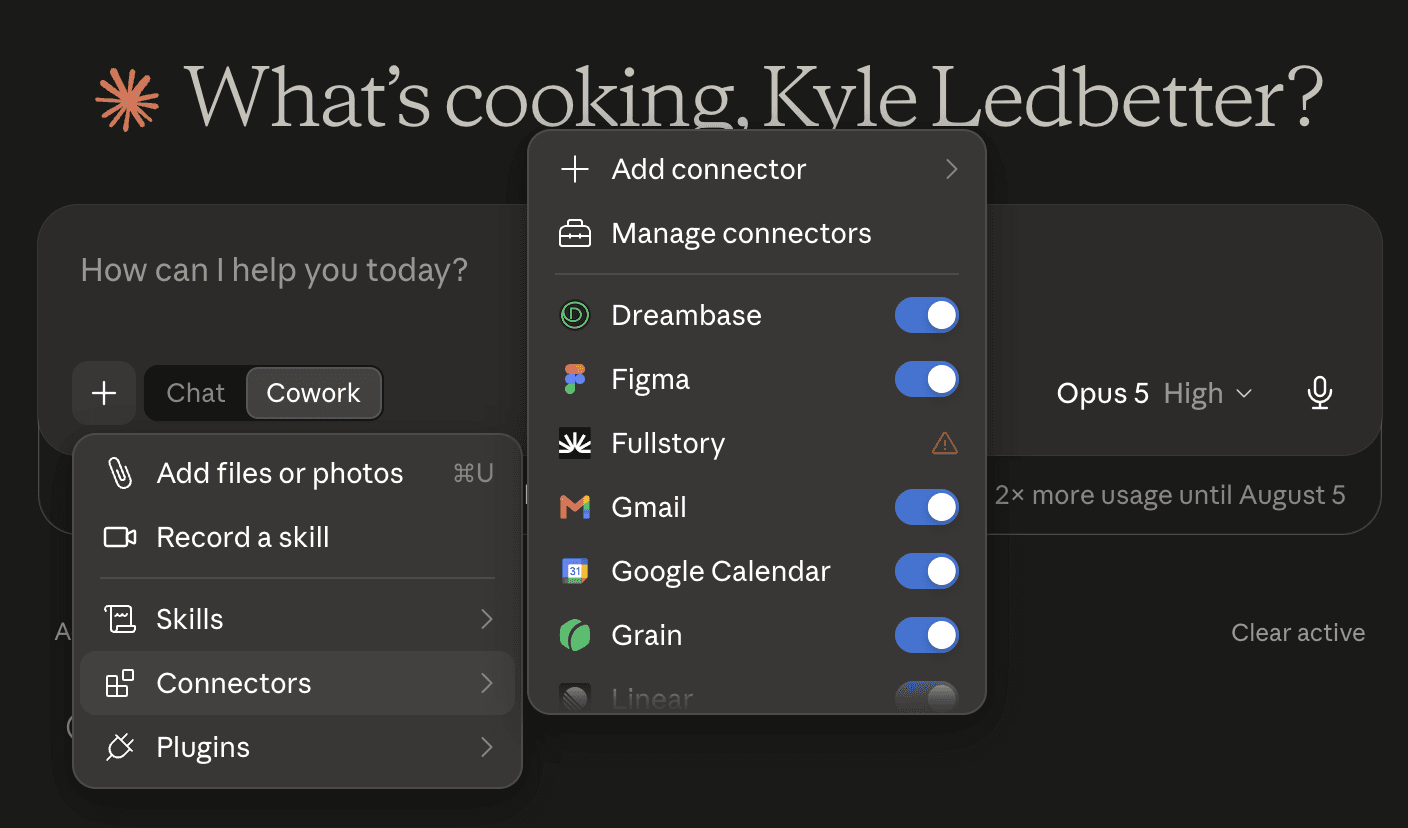
Now you can attach the Dreambase connector to a chat/task!
—
Codex Installation
Navigate to Settings → Plugins → MCPs → Add Server
MCP server name: Dreambase
Type: Streamable HTTP
URL: https://app.dreambase.com/mcp
Save
dreambase will show in Servers, click Authenticate

Authorize Codex
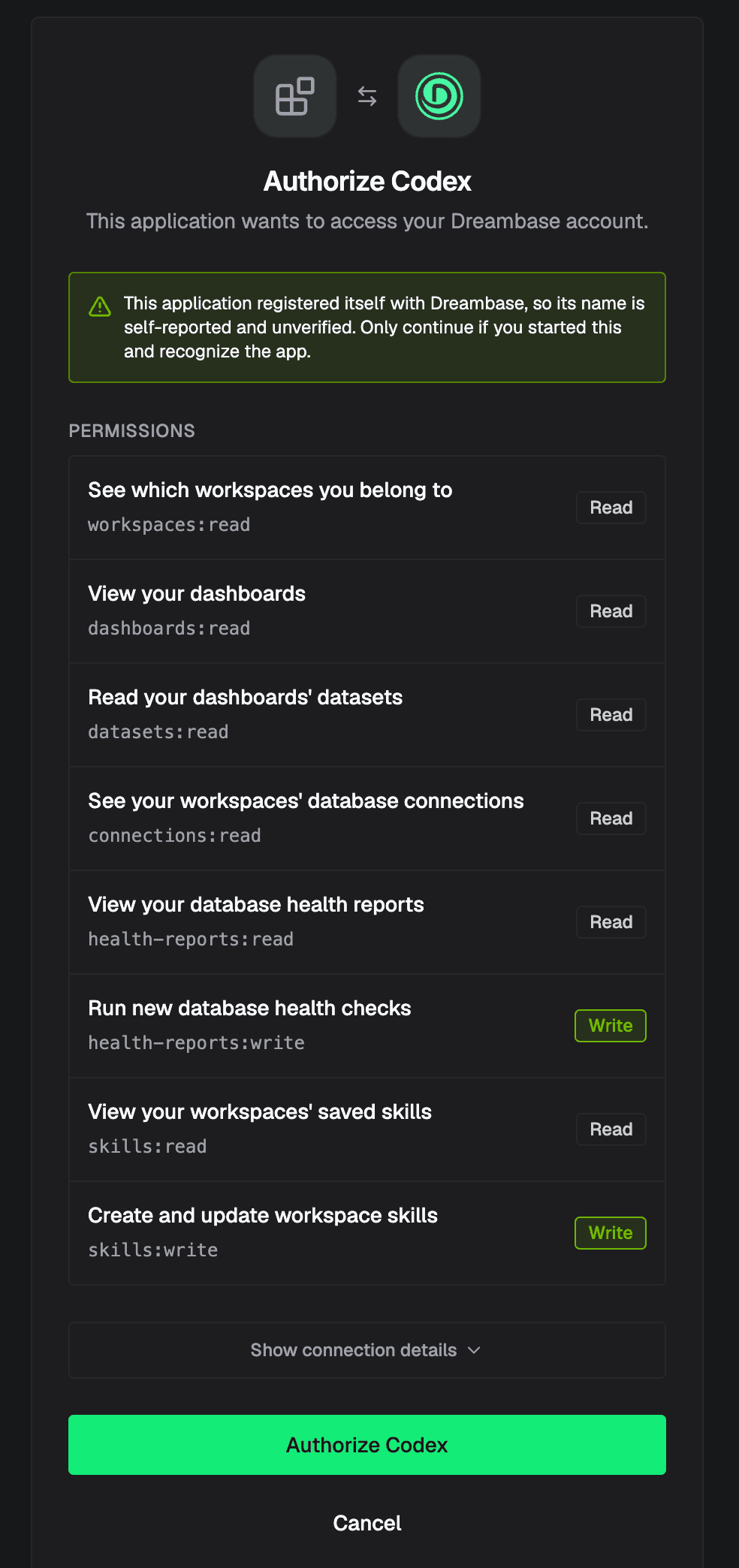
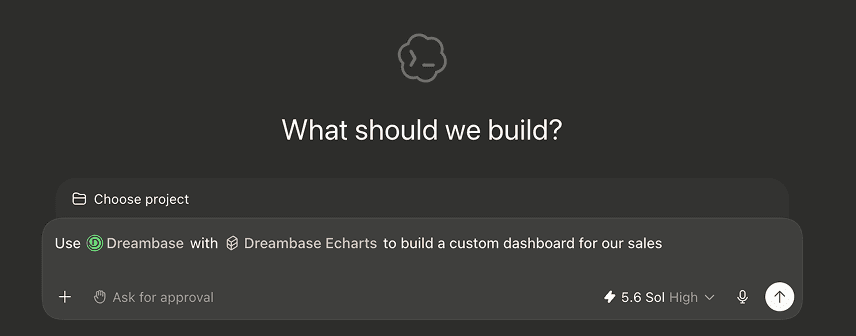
Now you @ mention Dreambase for tasks in Codex
—
Claude Code Installation
In your terminal run:
claude mcp add --transport http dreambase https://app.dreambase.com/mcp
run a claude session:
claude
load mcp servers
/mcp
Use the arrow to navigate to dreambase and press enter
dreambase · △ needs authentication
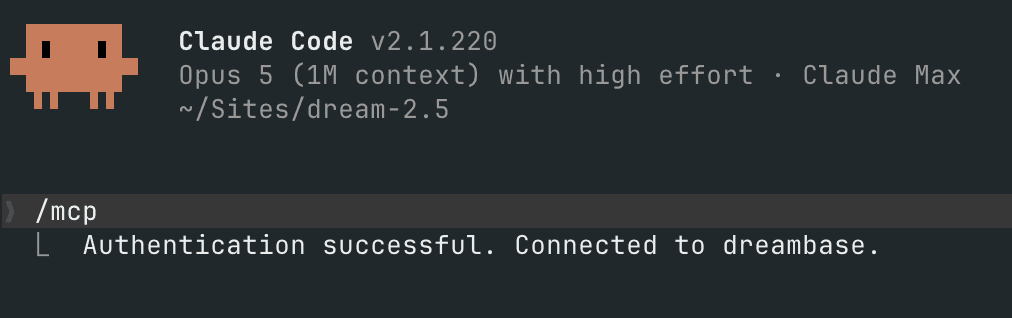
Choose Authenticate (which opens a browser)
You should see this message (Authentication successful. Connected to dreambase.)
—
Cursor Installation
Navigate to Customize → MCP → New MCP Server
In .cursor/mcp.json add:
Save and you should see Dreambase show up under Needs Attention

Click Authenticate
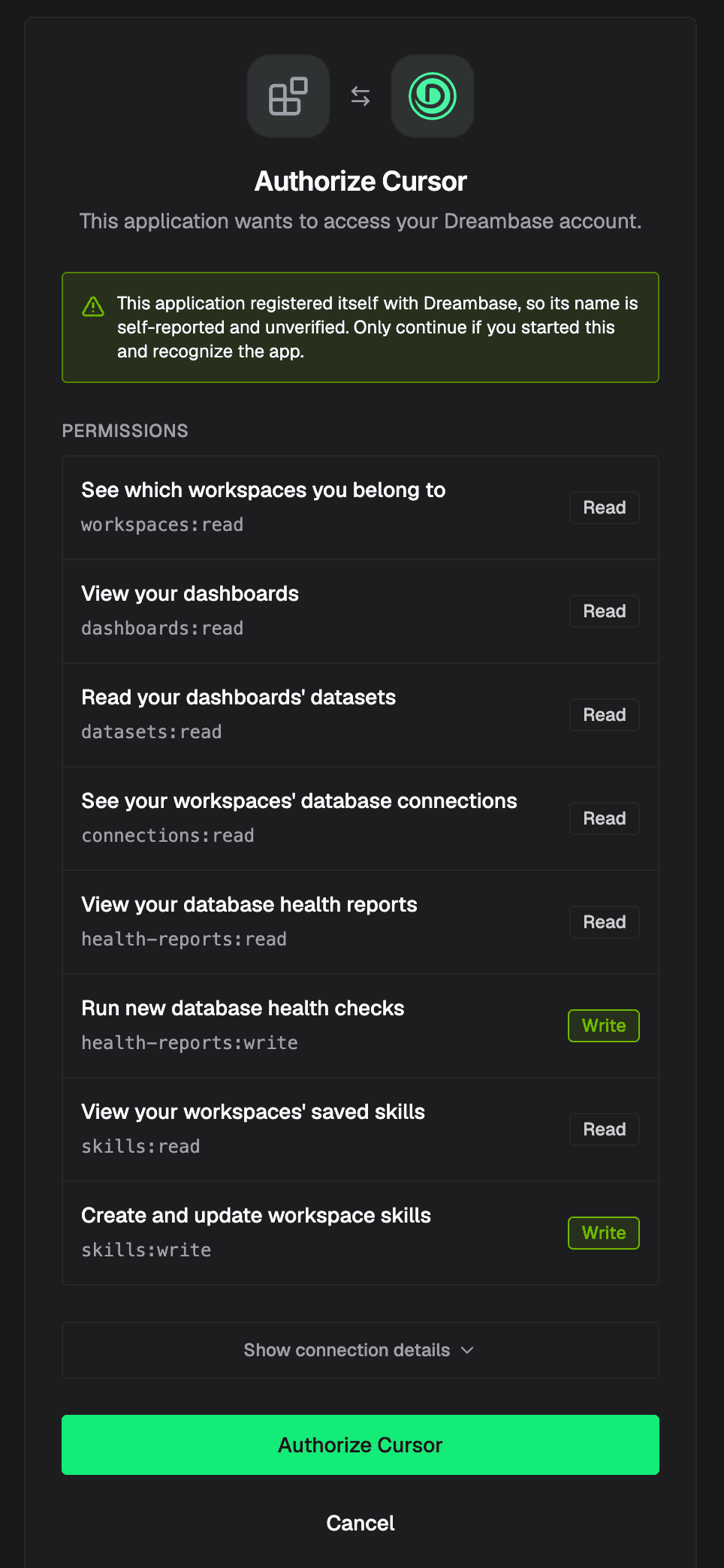
Authorize Cursor
Now you can @ mention Dreambase to use in Cursor!
—
Available tools
Every tool is scoped to a workspace, so most sessions start with whoami and list_workspaces. Your client only sees the tools your sign-in has scopes for. If a tool you expect is missing, disconnect and reconnect Dreambase, since an existing sign-in doesn't pick up newly added scopes.
Scopes: account, workspaces:read, dashboards:read, datasets:read, datasets:write, connections:read, connections:write, health-reports:read, health-reports:write, skills:read, skills:write. save_dataset, refresh_dataset, and promote_dataset each need both datasets:read and datasets:write, and saving also needs connections:read. create_skill needs skills:read and skills:write, while update_skill only needs skills:write.
Account and discovery
whoami returns your user id, client, and granted scopes. list_workspaces lists the workspaces you belong to. list_dashboards lists dashboards with their refresh state and the date of the latest metric snapshot.
Datasets
list_datasets and get_dataset return dataset handles: name, column schema, row count, expiry, and whether the dataset is queryable. get_dataset adds per-column profile stats. query_dataset runs one read-only DuckDB SELECT over one dataset, exposed as the table dataset.
plan_datasets turns an intent plus schema context into validated dataset plans, and never saves anything. save_dataset runs a SQL, API, or MCP source and stores the result as a scratch dataset that expires after about seven days. promote_dataset clears that expiry so a verified dataset is kept (this can't currently be undone). refresh_dataset replays a saved dataset's definition and replaces its rows. The Datasets doc covers the full lifecycle. The planning and dataset write tools are marked [EXPERIMENTAL], so their arguments can change. A promoted dataset that isn't linked to a dashboard can still be redefined with save_dataset and stays durable. Dataset handles don't show when a dataset was last refreshed.
Metric snapshots
list_aggregates and get_aggregate return weekly dashboard snapshots: seven days of daily values per metric, the week-over-week change, and the insight narrative. Dashboards without a snapshot yet won't appear, so use the dataset tools for those. Aggregates are also where history lives. Every durable dataset gets them, so reach for an aggregate when you want a trend over time instead of re-querying rows.
Connections and connectors
list_connections lists the Supabase, API, and MCP sources already connected to the workspace. get_connection returns one source's compact catalog (tables, enabled endpoints, or enabled tools) and search_connection returns the full schema for matching tables, columns, endpoints, or tools.
list_connectors shows every connector the workspace can use and whether it's connected. request_connector_connection returns a link you open to connect one (Supabase, GitHub, Slack, PostHog, ClickHouse, BigQuery, or Ordinal), and get_connection_request tells the agent when that connection is live. Other connectors are connected in the Dreambase app. Connecting anything other than Supabase needs an active workspace subscription.
Supabase health reports
create_health_report starts a health report for a connected Supabase project and returns right away with a report id. get_health_report polls it until it completes, usually within a minute or two, and returns metrics, scores, a grade, insights, and recommendations. list_health_reports gives you the history. A grade of 0 means nothing was measured on that run, not a failing database, and a score that's missing from a report wasn't measured.
Workspace Skills
list_skills and get_skill read the Skills that map your sources into business context. create_skill generates a new Skill with AI and update_skill edits one. Both are limited to workspace owners and admins.
Read-only vs. write tools
Read-only: whoami, list_workspaces, list_dashboards, list_datasets, get_dataset, query_dataset, list_aggregates, get_aggregate, list_connections, get_connection, search_connection, list_connectors, get_connection_request, list_health_reports, get_health_report, list_skills, get_skill.
Write: save_dataset, promote_dataset, refresh_dataset, create_health_report, create_skill, update_skill, request_connector_connection. plan_datasets doesn't save anything, but it can call your connected APIs and MCP tools while it plans.
We recommend Always allow for the read-only tools and Needs approval for everything else.
Installing the Dreambase MCP
The easiest way to get the Dreambase MCP server is the Dreambase Plugin, which installs the server and all nine Dreambase Skills in one step. If you only want the MCP server, or the plugin listing isn't available in your client yet, add it manually with the steps below.
ChatGPT Installation
Navigate to Plugins, click + to add.
Icon:
Name: Dreambase
Description: MCP tools to get datasets, aggregate metrics and kpis, create supabase health reports, and analytics
Server URL
Connection: https://app.dreambase.com/mcp
Authentication: OAuth
Check the box for terms
Click Create and Sign in with Dreambase
You will then see Dreambase in your Plugins
and you can now @ mention Dreambase to use the MCP tools
—
Claude Chat / Cowork / Code Installation
Navigate to Customize → Connectors → Add → Add custom connector
Name: Dreambase
Remote MCP server URL: https://app.dreambase.com/mcp
Leave Advanced settings blank
Individual sign-in: enabled
Add, then Connect
Click Authorize Claude
Tool permissions
We recommend always allow for Read-only tools that safely fetch information as designed
For write tools we recommend Needs approval
Now you can attach the Dreambase connector to a chat/task!
—
Codex Installation
Navigate to Settings → Plugins → MCPs → Add Server
MCP server name: Dreambase
Type: Streamable HTTP
URL: https://app.dreambase.com/mcp
Save
dreambase will show in Servers, click Authenticate
Authorize Codex
Now you @ mention Dreambase for tasks in Codex
—
Claude Code Installation
In your terminal run:
claude mcp add --transport http dreambase https://app.dreambase.com/mcp
run a claude session:
claude
load mcp servers
/mcp
Use the arrow to navigate to dreambase and press enter
dreambase · △ needs authentication
Choose Authenticate (which opens a browser)
You should see this message (Authentication successful. Connected to dreambase.)
—
Cursor Installation
Navigate to Customize → MCP → New MCP Server
In .cursor/mcp.json add:
Save and you should see Dreambase show up under Needs Attention
Click Authenticate
Authorize Cursor
Now you can @ mention Dreambase to use in Cursor!
—
Available tools
Every tool is scoped to a workspace, so most sessions start with whoami and list_workspaces. Your client only sees the tools your sign-in has scopes for. If a tool you expect is missing, disconnect and reconnect Dreambase, since an existing sign-in doesn't pick up newly added scopes.
Scopes: account, workspaces:read, dashboards:read, datasets:read, datasets:write, connections:read, connections:write, health-reports:read, health-reports:write, skills:read, skills:write. save_dataset, refresh_dataset, and promote_dataset each need both datasets:read and datasets:write, and saving also needs connections:read. create_skill needs skills:read and skills:write, while update_skill only needs skills:write.
Account and discovery
whoami returns your user id, client, and granted scopes. list_workspaces lists the workspaces you belong to. list_dashboards lists dashboards with their refresh state and the date of the latest metric snapshot.
Datasets
list_datasets and get_dataset return dataset handles: name, column schema, row count, expiry, and whether the dataset is queryable. get_dataset adds per-column profile stats. query_dataset runs one read-only DuckDB SELECT over one dataset, exposed as the table dataset.
plan_datasets turns an intent plus schema context into validated dataset plans, and never saves anything. save_dataset runs a SQL, API, or MCP source and stores the result as a scratch dataset that expires after about seven days. promote_dataset clears that expiry so a verified dataset is kept (this can't currently be undone). refresh_dataset replays a saved dataset's definition and replaces its rows. The Datasets doc covers the full lifecycle. The planning and dataset write tools are marked [EXPERIMENTAL], so their arguments can change. A promoted dataset that isn't linked to a dashboard can still be redefined with save_dataset and stays durable. Dataset handles don't show when a dataset was last refreshed.
Metric snapshots
list_aggregates and get_aggregate return weekly dashboard snapshots: seven days of daily values per metric, the week-over-week change, and the insight narrative. Dashboards without a snapshot yet won't appear, so use the dataset tools for those. Aggregates are also where history lives. Every durable dataset gets them, so reach for an aggregate when you want a trend over time instead of re-querying rows.
Connections and connectors
list_connections lists the Supabase, API, and MCP sources already connected to the workspace. get_connection returns one source's compact catalog (tables, enabled endpoints, or enabled tools) and search_connection returns the full schema for matching tables, columns, endpoints, or tools.
list_connectors shows every connector the workspace can use and whether it's connected. request_connector_connection returns a link you open to connect one (Supabase, GitHub, Slack, PostHog, ClickHouse, BigQuery, or Ordinal), and get_connection_request tells the agent when that connection is live. Other connectors are connected in the Dreambase app. Connecting anything other than Supabase needs an active workspace subscription.
Supabase health reports
create_health_report starts a health report for a connected Supabase project and returns right away with a report id. get_health_report polls it until it completes, usually within a minute or two, and returns metrics, scores, a grade, insights, and recommendations. list_health_reports gives you the history. A grade of 0 means nothing was measured on that run, not a failing database, and a score that's missing from a report wasn't measured.
Workspace Skills
list_skills and get_skill read the Skills that map your sources into business context. create_skill generates a new Skill with AI and update_skill edits one. Both are limited to workspace owners and admins.
Read-only vs. write tools
Read-only: whoami, list_workspaces, list_dashboards, list_datasets, get_dataset, query_dataset, list_aggregates, get_aggregate, list_connections, get_connection, search_connection, list_connectors, get_connection_request, list_health_reports, get_health_report, list_skills, get_skill.
Write: save_dataset, promote_dataset, refresh_dataset, create_health_report, create_skill, update_skill, request_connector_connection. plan_datasets doesn't save anything, but it can call your connected APIs and MCP tools while it plans.
We recommend Always allow for the read-only tools and Needs approval for everything else.
Installing the Dreambase MCP
The easiest way to get the Dreambase MCP server is the Dreambase Plugin, which installs the server and all nine Dreambase Skills in one step. If you only want the MCP server, or the plugin listing isn't available in your client yet, add it manually with the steps below.
ChatGPT Installation
Navigate to Plugins, click + to add.
Icon:
Name: Dreambase
Description: MCP tools to get datasets, aggregate metrics and kpis, create supabase health reports, and analytics
Server URL
Connection: https://app.dreambase.com/mcp
Authentication: OAuth
Check the box for terms
Click Create and Sign in with Dreambase
You will then see Dreambase in your Plugins
and you can now @ mention Dreambase to use the MCP tools
—
Claude Chat / Cowork / Code Installation
Navigate to Customize → Connectors → Add → Add custom connector
Name: Dreambase
Remote MCP server URL: https://app.dreambase.com/mcp
Leave Advanced settings blank
Individual sign-in: enabled
Add, then Connect
Click Authorize Claude
Tool permissions
We recommend always allow for Read-only tools that safely fetch information as designed
For write tools we recommend Needs approval
Now you can attach the Dreambase connector to a chat/task!
—
Codex Installation
Navigate to Settings → Plugins → MCPs → Add Server
MCP server name: Dreambase
Type: Streamable HTTP
URL: https://app.dreambase.com/mcp
Save
dreambase will show in Servers, click Authenticate
Authorize Codex
Now you @ mention Dreambase for tasks in Codex
—
Claude Code Installation
In your terminal run:
claude mcp add --transport http dreambase https://app.dreambase.com/mcp
run a claude session:
claude
load mcp servers
/mcp
Use the arrow to navigate to dreambase and press enter
dreambase · △ needs authentication
Choose Authenticate (which opens a browser)
You should see this message (Authentication successful. Connected to dreambase.)
—
Cursor Installation
Navigate to Customize → MCP → New MCP Server
In .cursor/mcp.json add:
Save and you should see Dreambase show up under Needs Attention
Click Authenticate
Authorize Cursor
Now you can @ mention Dreambase to use in Cursor!
—
Available tools
Every tool is scoped to a workspace, so most sessions start with whoami and list_workspaces. Your client only sees the tools your sign-in has scopes for. If a tool you expect is missing, disconnect and reconnect Dreambase, since an existing sign-in doesn't pick up newly added scopes.
Scopes: account, workspaces:read, dashboards:read, datasets:read, datasets:write, connections:read, connections:write, health-reports:read, health-reports:write, skills:read, skills:write. save_dataset, refresh_dataset, and promote_dataset each need both datasets:read and datasets:write, and saving also needs connections:read. create_skill needs skills:read and skills:write, while update_skill only needs skills:write.
Account and discovery
whoami returns your user id, client, and granted scopes. list_workspaces lists the workspaces you belong to. list_dashboards lists dashboards with their refresh state and the date of the latest metric snapshot.
Datasets
list_datasets and get_dataset return dataset handles: name, column schema, row count, expiry, and whether the dataset is queryable. get_dataset adds per-column profile stats. query_dataset runs one read-only DuckDB SELECT over one dataset, exposed as the table dataset.
plan_datasets turns an intent plus schema context into validated dataset plans, and never saves anything. save_dataset runs a SQL, API, or MCP source and stores the result as a scratch dataset that expires after about seven days. promote_dataset clears that expiry so a verified dataset is kept (this can't currently be undone). refresh_dataset replays a saved dataset's definition and replaces its rows. The Datasets doc covers the full lifecycle. The planning and dataset write tools are marked [EXPERIMENTAL], so their arguments can change. A promoted dataset that isn't linked to a dashboard can still be redefined with save_dataset and stays durable. Dataset handles don't show when a dataset was last refreshed.
Metric snapshots
list_aggregates and get_aggregate return weekly dashboard snapshots: seven days of daily values per metric, the week-over-week change, and the insight narrative. Dashboards without a snapshot yet won't appear, so use the dataset tools for those. Aggregates are also where history lives. Every durable dataset gets them, so reach for an aggregate when you want a trend over time instead of re-querying rows.
Connections and connectors
list_connections lists the Supabase, API, and MCP sources already connected to the workspace. get_connection returns one source's compact catalog (tables, enabled endpoints, or enabled tools) and search_connection returns the full schema for matching tables, columns, endpoints, or tools.
list_connectors shows every connector the workspace can use and whether it's connected. request_connector_connection returns a link you open to connect one (Supabase, GitHub, Slack, PostHog, ClickHouse, BigQuery, or Ordinal), and get_connection_request tells the agent when that connection is live. Other connectors are connected in the Dreambase app. Connecting anything other than Supabase needs an active workspace subscription.
Supabase health reports
create_health_report starts a health report for a connected Supabase project and returns right away with a report id. get_health_report polls it until it completes, usually within a minute or two, and returns metrics, scores, a grade, insights, and recommendations. list_health_reports gives you the history. A grade of 0 means nothing was measured on that run, not a failing database, and a score that's missing from a report wasn't measured.
Workspace Skills
list_skills and get_skill read the Skills that map your sources into business context. create_skill generates a new Skill with AI and update_skill edits one. Both are limited to workspace owners and admins.
Read-only vs. write tools
Read-only: whoami, list_workspaces, list_dashboards, list_datasets, get_dataset, query_dataset, list_aggregates, get_aggregate, list_connections, get_connection, search_connection, list_connectors, get_connection_request, list_health_reports, get_health_report, list_skills, get_skill.
Write: save_dataset, promote_dataset, refresh_dataset, create_health_report, create_skill, update_skill, request_connector_connection. plan_datasets doesn't save anything, but it can call your connected APIs and MCP tools while it plans.
We recommend Always allow for the read-only tools and Needs approval for everything else.