Search
Getting Started
Feature guides
External Data Sources
Dreambase Plugin & MCP
Community support
You can add multiple Supabase schemas from a single Supabase project to a single Dreambase workspace
Pro+ Dreambase subscribers can easily add additional Supabase schemas to their Dreambase workspace via the Integrations settings page.
Prerequisites
To make your custom schema visible to REST API endpoints and tables securely accessible, you’ll first need to adjust a Supabase setting and run a few queries.
From the Supabase docs:
You can expose custom database schemas - to do so you need to follow these steps:
Go to API settings and add your custom schema to “Exposed schemas”.
Run the following SQL, substituting
myschemawith your schema name:
GRANT USAGE ON SCHEMA myschema TO anon, authenticated, service_role;
GRANT ALL ON ALL TABLES IN SCHEMA myschema TO anon, authenticated, service_role;
GRANT ALL ON ALL ROUTINES IN SCHEMA myschema TO anon, authenticated, service_role;
GRANT ALL ON ALL SEQUENCES IN SCHEMA myschema TO anon, authenticated, service_role;
ALTER DEFAULT PRIVILEGES FOR ROLE postgres IN SCHEMA myschema GRANT ALL ON TABLES TO anon, authenticated, service_role;
ALTER DEFAULT PRIVILEGES FOR ROLE postgres IN SCHEMA myschema GRANT ALL ON ROUTINES TO anon, authenticated, service_role;
ALTER DEFAULT PRIVILEGES FOR ROLE postgres IN SCHEMA myschema GRANT ALL ON SEQUENCES TO anon, authenticated, service_role;
Add a custom schema to your Supabase Connector
After you’ve successfully setup the permissions and settings in Supabase, navigate to Connectors > Manage.
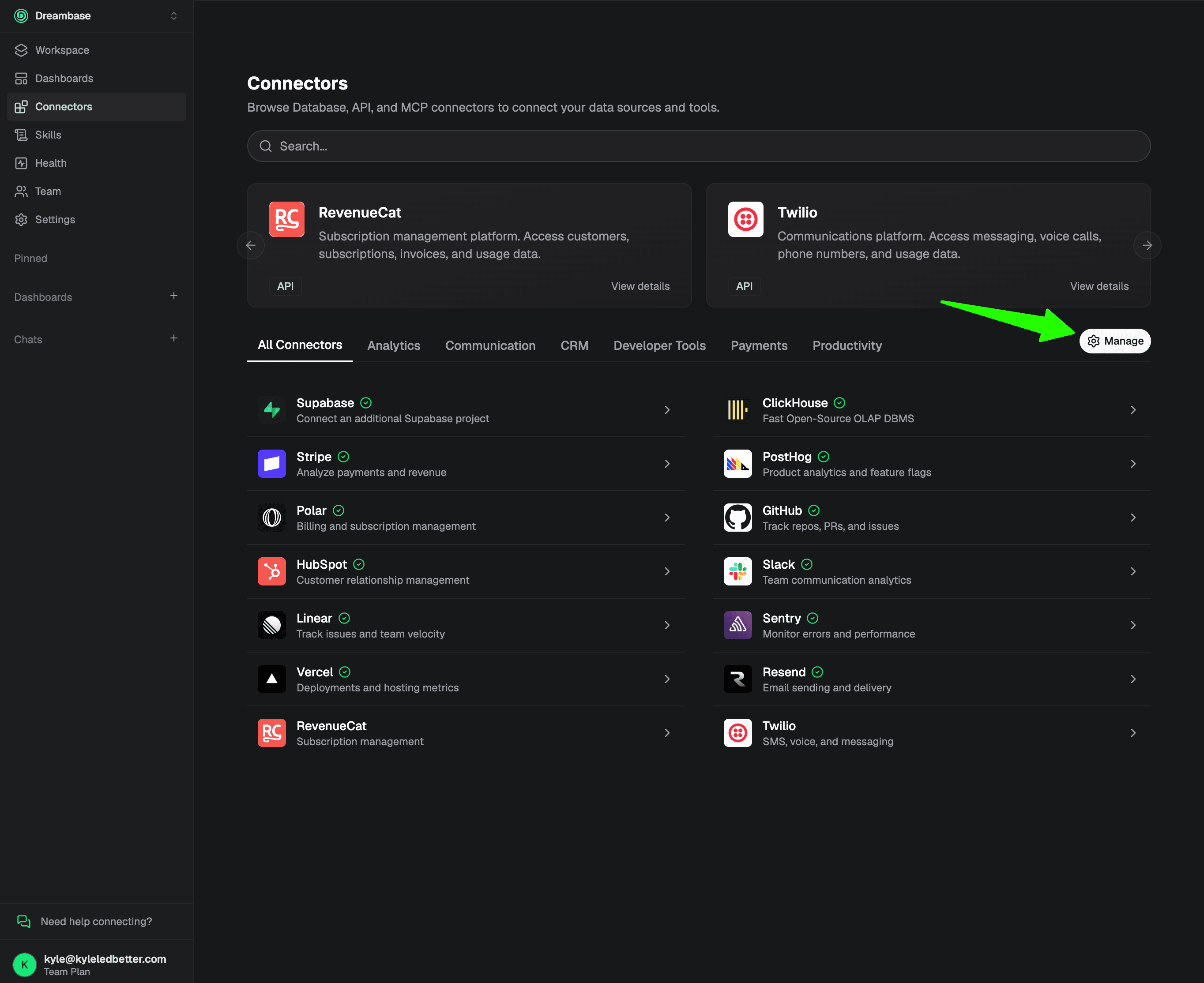
Then drill down into the Supabase database project with the additional schemas
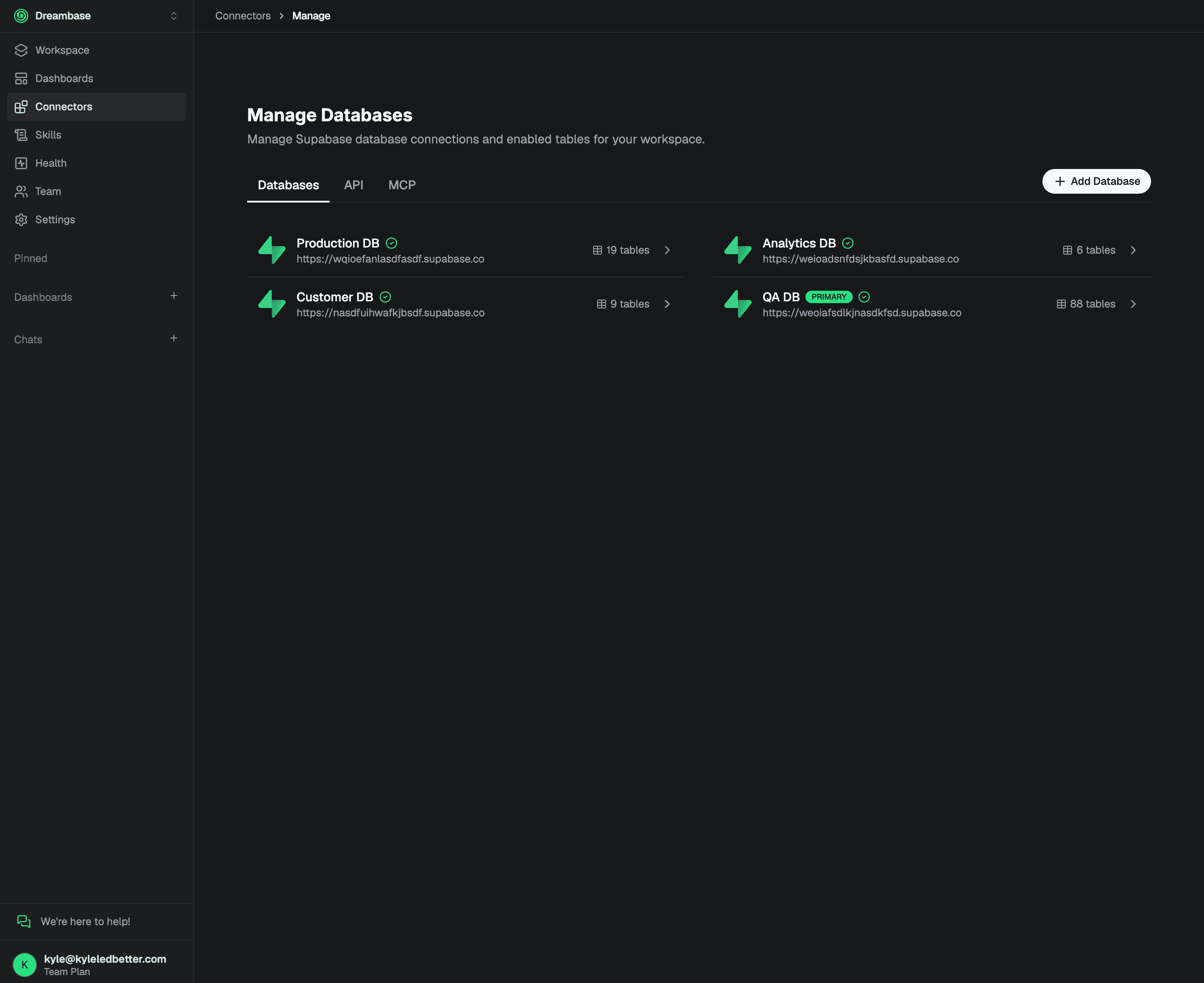
Click on Add Schema
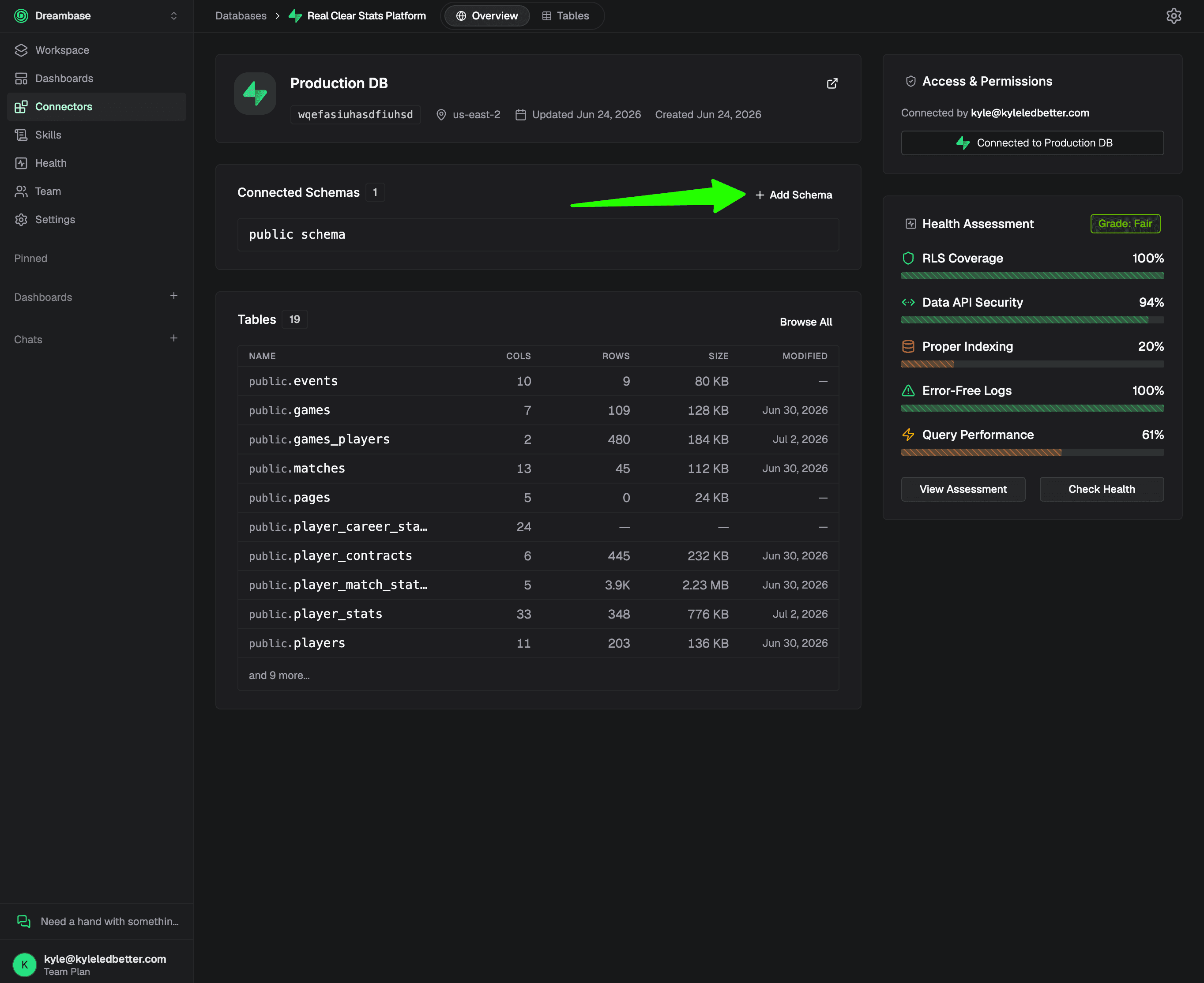
add your new schema and save!

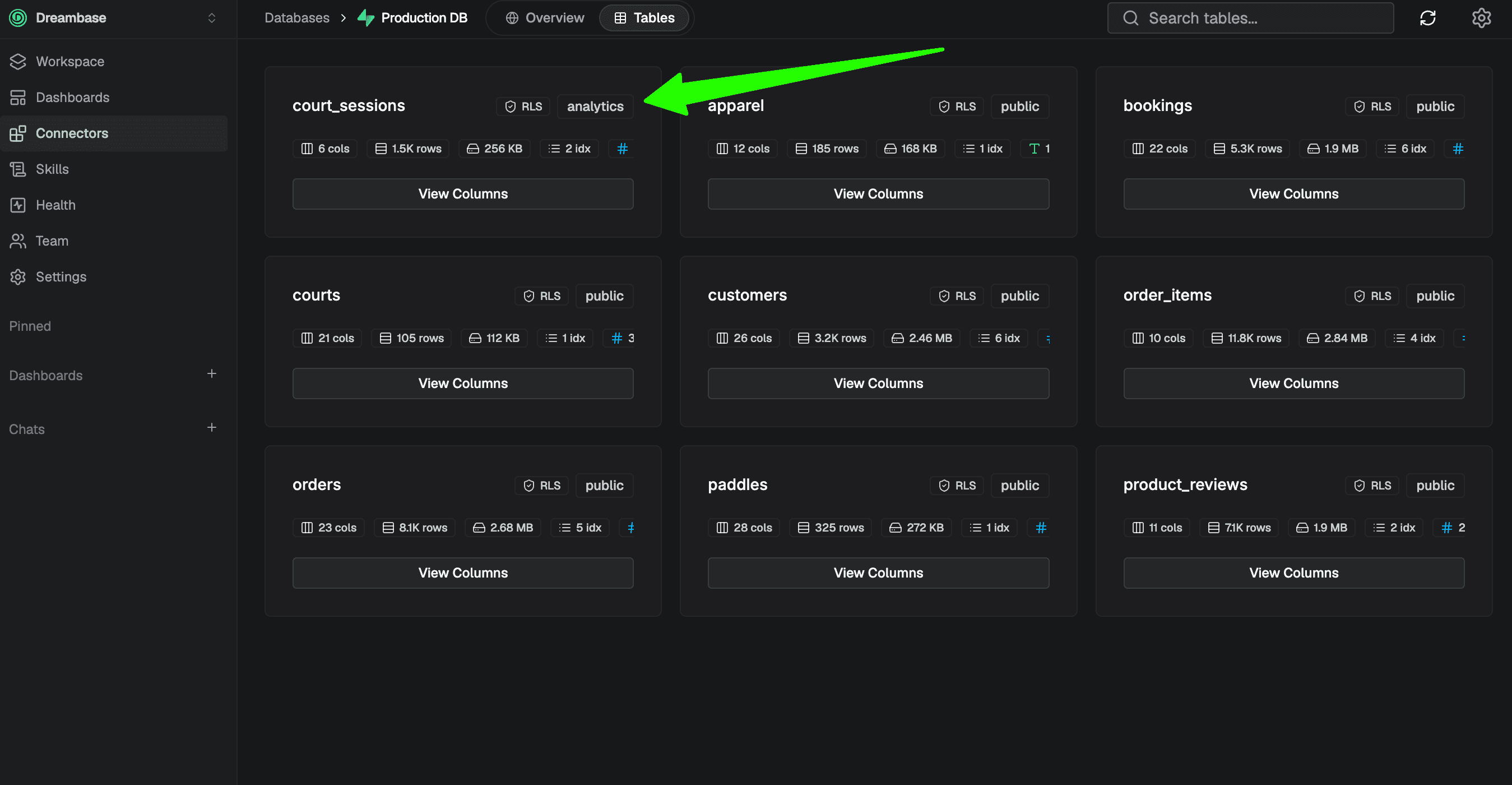
Ensure the new schema tables show in the Tables tab
Pro+ Dreambase subscribers can easily add additional Supabase schemas to their Dreambase workspace via the Integrations settings page.
Prerequisites
To make your custom schema visible to REST API endpoints and tables securely accessible, you’ll first need to adjust a Supabase setting and run a few queries.
From the Supabase docs:
You can expose custom database schemas - to do so you need to follow these steps:
Go to API settings and add your custom schema to “Exposed schemas”.
Run the following SQL, substituting
myschemawith your schema name:
GRANT USAGE ON SCHEMA myschema TO anon, authenticated, service_role;
GRANT ALL ON ALL TABLES IN SCHEMA myschema TO anon, authenticated, service_role;
GRANT ALL ON ALL ROUTINES IN SCHEMA myschema TO anon, authenticated, service_role;
GRANT ALL ON ALL SEQUENCES IN SCHEMA myschema TO anon, authenticated, service_role;
ALTER DEFAULT PRIVILEGES FOR ROLE postgres IN SCHEMA myschema GRANT ALL ON TABLES TO anon, authenticated, service_role;
ALTER DEFAULT PRIVILEGES FOR ROLE postgres IN SCHEMA myschema GRANT ALL ON ROUTINES TO anon, authenticated, service_role;
ALTER DEFAULT PRIVILEGES FOR ROLE postgres IN SCHEMA myschema GRANT ALL ON SEQUENCES TO anon, authenticated, service_role;
Add a custom schema to your Supabase Connector
After you’ve successfully setup the permissions and settings in Supabase, navigate to Connectors > Manage.
Then drill down into the Supabase database project with the additional schemas
Click on Add Schema
add your new schema and save!
Ensure the new schema tables show in the Tables tab
Pro+ Dreambase subscribers can easily add additional Supabase schemas to their Dreambase workspace via the Integrations settings page.
Prerequisites
To make your custom schema visible to REST API endpoints and tables securely accessible, you’ll first need to adjust a Supabase setting and run a few queries.
From the Supabase docs:
You can expose custom database schemas - to do so you need to follow these steps:
Go to API settings and add your custom schema to “Exposed schemas”.
Run the following SQL, substituting
myschemawith your schema name:
GRANT USAGE ON SCHEMA myschema TO anon, authenticated, service_role;
GRANT ALL ON ALL TABLES IN SCHEMA myschema TO anon, authenticated, service_role;
GRANT ALL ON ALL ROUTINES IN SCHEMA myschema TO anon, authenticated, service_role;
GRANT ALL ON ALL SEQUENCES IN SCHEMA myschema TO anon, authenticated, service_role;
ALTER DEFAULT PRIVILEGES FOR ROLE postgres IN SCHEMA myschema GRANT ALL ON TABLES TO anon, authenticated, service_role;
ALTER DEFAULT PRIVILEGES FOR ROLE postgres IN SCHEMA myschema GRANT ALL ON ROUTINES TO anon, authenticated, service_role;
ALTER DEFAULT PRIVILEGES FOR ROLE postgres IN SCHEMA myschema GRANT ALL ON SEQUENCES TO anon, authenticated, service_role;
Add a custom schema to your Supabase Connector
After you’ve successfully setup the permissions and settings in Supabase, navigate to Connectors > Manage.
Then drill down into the Supabase database project with the additional schemas
Click on Add Schema
add your new schema and save!
Ensure the new schema tables show in the Tables tab